Create Global Rules
Global Rules provide two primary benefits when building mapping templates in the Bordereaux Service:
-
The ability to create a single data-validation rule that can be consistently reused across multiple mapping templates. Examples include key field definitions such as validating a construction type for a building in a commercial property policy or validating that a policy expiration date is always after a policy effective date.
-
The ability to build a complex rule once, and then to copy and edit it to fit specific mapping requirements. Copying and modifying complex rules rather than building new variations of them repeatedly saves time and effort when creating rules for data mapping tasks. A global rule can be copied and reused, copied and edited or altered to fit a new mapping requirement.
Global Rules can be built to support All Bordereaux imports types as well as for non-Bordereaux / ETL
In computing, extract, transform, load is the general procedure of copying data from one or more sources into a destination system which represents the data differently from the source or in a different context than the source. - Wikipedia (Extraction, Transform, Load) data mappings. Global Rules can also be built for specific Bordereaux mapping types including:
-
Raw Data Cleanup
-
Derived Data Mappings
-
Business Rules
Global rules can be created independently of template mapping, or during template mapping by converting an existing mapping rule.
Building Global Rules
-
Log in to Bordereaux as an admin.
-
Make sure that any fields needed for the Global Rule have previously been defined during Master Data Definition.
For example, if you are creating a global rule dependent on a given field, the field must exist in the Master Data Definition screen. If you intend to use a field called Policy End Date to determine a lookup within a particular table but you have not yet created the field, you would not be able to pull Policy End Date into a workflow to do a comparison or a lookup. -
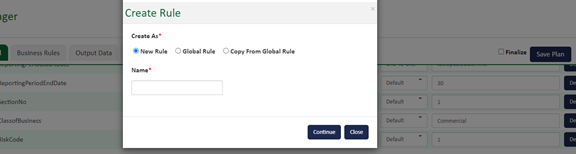
Open the navigation panel and select the Global Rules option. The Create Rule dialog appears.
-
In the Name entry box, type a value to identify the rule you intend to build. The Version field generates this value and it cannot be changed.
-
The default setting of the ETL switch is disabled. When disabled, the box is gray; when enabled, it appears in dark green. Leave the setting disabled to create a global rule for use with Bordereaux. Note that the Import types are different according to your setting in this step.

-
In the Import Type drop-down list select one or more of the options:
-
Premium - Select this option when importing premium transaction data.
-
Cash - Select this option when importing cash transaction data for policies.
-
Claims - Select this option when you are working with policy claims data.
-
-
In the Category drop-down list, select an option:
-
Cleanup - When you choose this option, two more lists of options appear:
-
Raw Fields - Select this option when you are cleaning up Source Data content before it is to be mapped to a Raw/Normalized Field.
-
Field Node - Select this option when you are working with data fields that exist in XML or a database.
-
-
Business Rules - Select this option when creating a business rule which will be used to validate data.
-
Derived - Select this option when you are creating a rule used to create a Derived Field Value
-
-
Click Save.
Use the steps below to begin creating your global ETL rule.
-
Log in to Bordereaux as an admin.
-
Make sure that any fields needed for the Global Rule have previously been defined during Master Data Definition.
For example, if you are creating a global rule dependent on a given field, that field must exist in the Master Data Definition screen. If you intend to use a field called Policy End Date to determine a lookup within a particular table but you have not yet created the field, you would not be able to pull Policy End Date into a workflow to do a comparison or a lookup. -
Open the navigation panel and select the Global Rules option. The Create Rule dialog appears.
Click the image to change its size.
-
In the Name entry box, type a value to identify the rule you intend to build. The Version automatically generates version values.
-
Click the ETL switch to enable ETL. When disabled, the box is gray; when enabled, it appears in dark green. Note that the Import types are different according to your setting in this step.

-
In the Import Type drop-down list, select Others, the established business type for ETL.
-
In the Category drop-down list, select an option:
-
Cleanup - When you choose this option, two more lists of options appear:
-
Raw Fields - Select this option when you are cleaning up completely untouched data.
-
Field Node - Select this option when you are working with data fields that exist in XML or a database.
-
-
Business Rules - Select this option when creating a business rule.
-
Derived - Select this option when you are creating a rule that is applied against derived data.
-
-
Click Save.
Refer to the Create Rules topic for background information about creating business rule workflows.
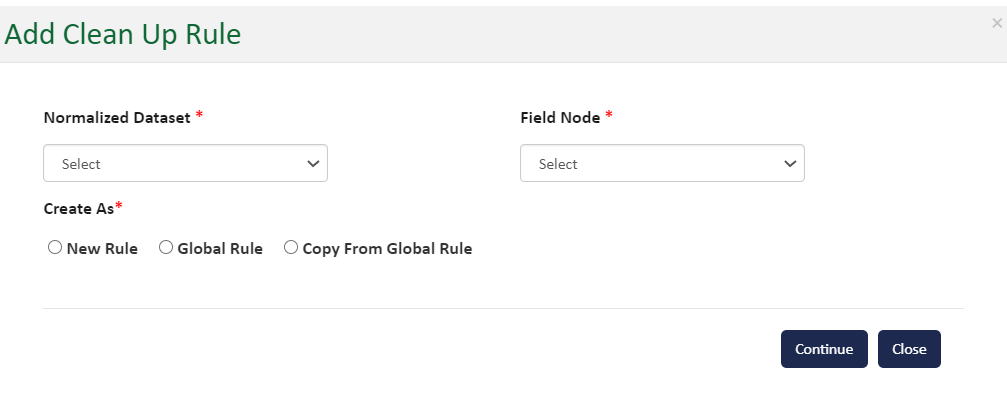
Whenever you create a Cleanup, Custom (Derived) or Business Rule from within a template, you will be prompted to define what type of rule you intend to create.
Choose from the following options:
-
New Rule – Not a Global Rule. Only used in current template
-
Global Rule – Rule becomes available to other templates.
-
Copy from Global Rule – Select any previously saved Global Rule.