Create Rules
Bordereaux
Business rules for Bordereaux are built with a click-drop toolset on a workflow design canvas. The purpose of rules in Bordereaux processing is to cleanse raw data and generate derived data. The workflow canvas is available through the Mapping Template Manager.
- The Rules engine runs your business rules and validates data received from multiple sources.
- Allows for the aggregation of data and application of business rules via user configuration.
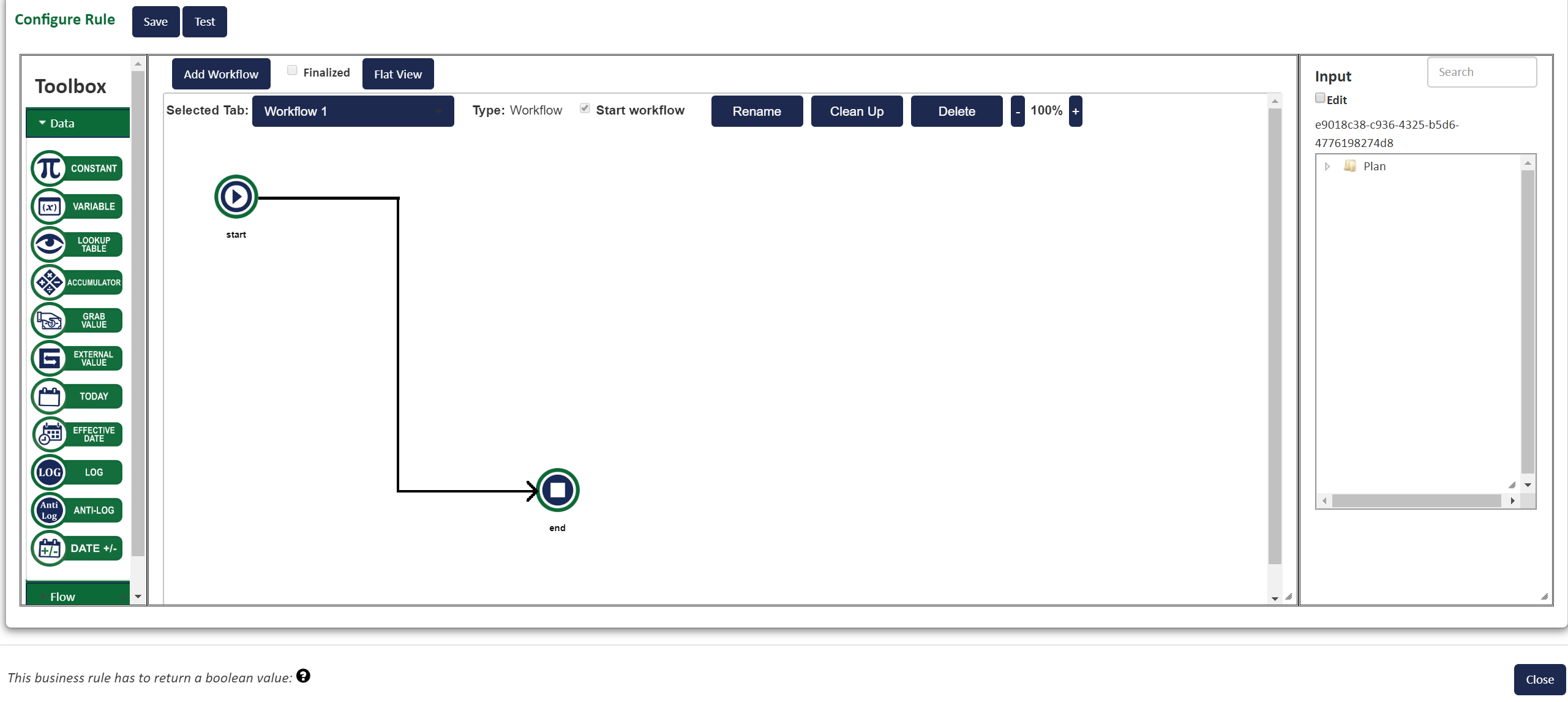
- The Configure Rule is a workflow design canvas where you can build rules to cleanse and manipulate source data (normalize) and prepare it for your own reporting.
Configure Rule Workspace
Click the image below to change its size.
Add Workflow - Adds a new tab and a canvas where you can create a new business rule. A tab represents one set of commands. If your rule is complex, you can break it up into multiple tabs that all work together.
Tab Name – The tab name corresponds to the name of the rule. Provide a tab name indicates the rule you are creating.
Start – All rules start from the Start Button.
End - Rules end with the End button.
Save – The Save button commits items added to the workflow canvas. Perform this function before you begin configuring each tool you add.
- Open a template with the Mapping Template Manager.
- Select the Business Rule tab.
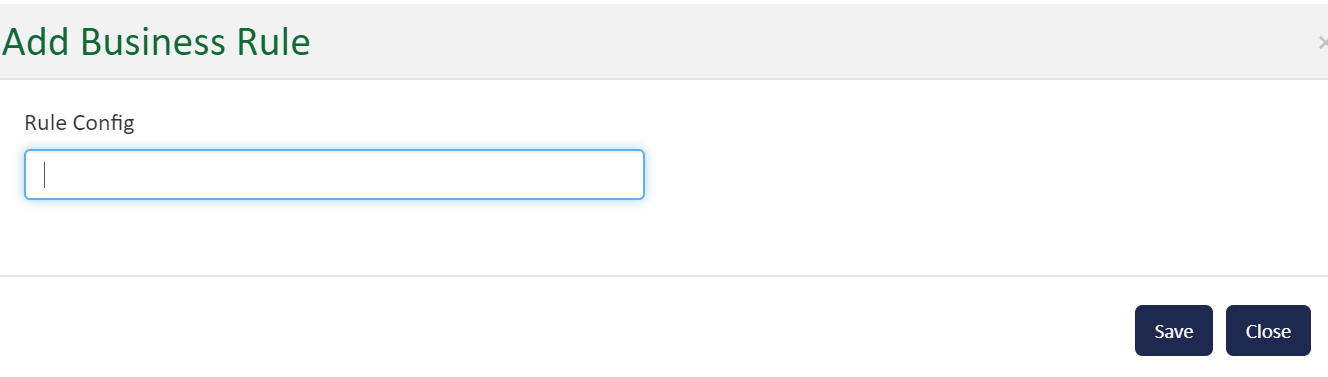
- Click Add Business Rule.
Click the image to change its size.
- Enter a name for your rule in the Rule Config box.
- Click OK. The workflow design canvas appears.
Click the image to change its size.
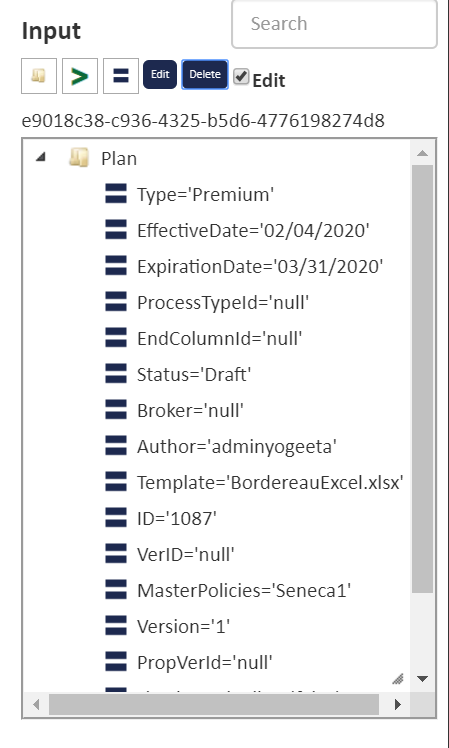
- From this point, use tools and the Input panel on the right side of the screen to create rules.
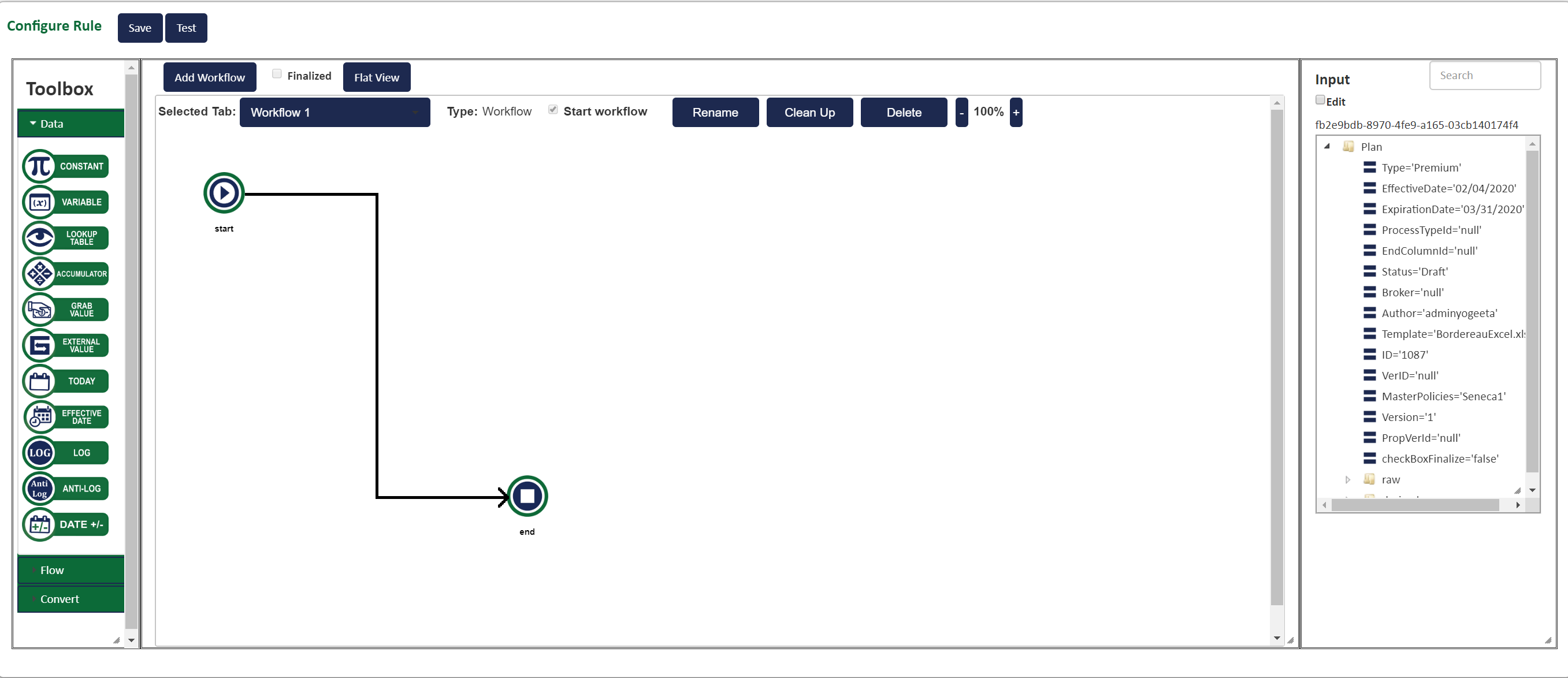
To create a new mapping rule, start by adding new Workflow Tab “Add Workflow”. Users can then load either tools (from the toolkit) or data elements from the Normalized or Derived Data sets by clicking on the tool or data element once. The following options are available from the screen above:
- Add Workflow - Loads a New tab to start creating a new business rule. Depending on how complicated the rule is you may want to add multiple tabs to break the rule up into smaller components for derivation
- Tab Name – Give the tab a name that reflects the rule you are creating
- Start – All rules start from the Start Button.
- Save – Saving commits items loaded to screen and allows you to start working with them on rules.
- Connectors – Connectors are used to define the workflow that the system should follow to derive a data set. You Invoke the “Connector” function by clicking on any item you’ve loaded to the screen and clicking “Connect” You will be given the following options:
- Right Arrow
Use the right arrow to start the workflow. Click the Start Button, the first item in the workflow and then the arrow. - +, -, x, ÷
Use the math symbols to calculate values using two or more data elements, constants or variables. - =
Use the equals symbol to derive the final value and make it equal to the End tool. Also, can be used in a sub-workflow to set the value of an interim Variable to be used in the main tab calculation - &
Use the ampersand symbol to link two or more fields together end to end. If spacing or special characters are needed in a concatenated field, define them as constants and then include them.
- Right Arrow
- Toolbox – Data – Provide the following tools
- Constant Tool
- Variable Tool
- Lookup Table – Use to select a table to conduct a value lookup up against
- Grab Value – Use to grab a value defined to either a Variable or a Constant. Typically used when the value is needed in more than one calculation.
- Accumulator – Use it to aggregate values from a Looped Rule. E.g. Run loop until certain condition is met than pass value.
- Today – Use it the same as a Constant or Variable. Provide current system date. Can be used to feed “Process Date” type data elements of in a calculation for pro-rata premium calculations.
- Effective Date – Used for Date Calculations – adding / subtracting days from a date field.
- Toolbox – Flow – Used to define processes which move data onto or out of screen or which require logic to be applied
- Out tab – Directs system to another tab in the system to continue processing of the business rule
- Loop – Causes system to loop until a certain condition is met
- End-Loop – Causes system to stop loop when a certain condition is met
- Pass Thru – N/A for Bordereau
- Load – N/A for Bordereau
Comparison – Causes system to compare to values and provides for a True or False Flow to occur based on Results. Operations include:
= Use when two data sets are the same
< Use when the first data element is less than the second
> Use when the first data element is greater than the second
=< Use when the first data element is less than or equal to the second => Use when the first data element is greater then or equal to the second Begins with Use when first data element begins with second element. Typically you would use a constant to define the second data element or a table lookup. Ends with Use when the first data element ends with second data element. Typically you would use a constant to define the 2nd data element or alternately a table lookup. Contains Does first data element contain contents of 2nd. Typically you would use a constant to define the second data element or a table lookup. Is Blank Use when the first data element is blank or null
Is not Blank Use when the data element contains a value
Clicking on a tool or data element on the screen provides the user a pop-up box with the following options:
- Connect – Associates item to another tool or data element. Select the item to connect to and the connection type
- Right Arrow – Used at start of rule
- Math Symbols – Used to calculate a value using two or more elements
- Equal Sign – Used to assign calculated value to a Data Element
- Ampersand – Used to concatenate two or more fields
- Clear Connect – Clears a previously established connection
- Delete – Removes element from Workflow Tab
- Properties – Allows user to further configure how tool should be used
- Notes – Allows user to document tool purpose or intended use
- Break – Triggers if Rule should stop processing – Used for rating
- Clone – Makes a copy of the current element and puts it on the tab
- Close – Closes the pop-up box